PDF is one of the most widely used document formats, but it still causes trouble: files that won't open, attachments that are too large, text you can't edit or search, pages that print blank. This article goes through ten common PDF problems, explains why each one happens and lists practical fixes.
Why Do PDF Problems Occur?
Most PDF issues come from a handful of causes: a file damaged during download or transfer, outdated viewer software, fonts that were not embedded, large embedded images, poor conversion settings, or security settings applied by the author. Knowing the cause makes it much easier to pick the right fix.
1. PDF File Won't Open
You double-click a PDF and nothing happens, or you see an error such as "File cannot be opened" or "File is damaged".
Why It Happens
- The file is corrupted (incomplete download or transfer error)
- Your PDF reader is outdated
- A browser extension or plugin conflicts with the viewer
- The file has a .pdf extension but is actually another format
- Missing permissions or not enough free memory
What to Try
- Update your PDF reader – Make sure Adobe Acrobat Reader, Foxit or whichever viewer you use is up to date.
- Open it in a browser – Drag the PDF into Chrome, Edge or Firefox, which all have built-in PDF viewers.
- Download it again – If the file came from email or the web, delete it and download it again over a stable connection.
- Try another viewer – Preview (Mac), SumatraPDF (Windows) or the Google Drive viewer sometimes open files that other readers reject.
- Repair the file – If none of the above works, try to repair the PDF. Repair rebuilds the file's internal structure; it can't recover content that is actually missing from a truncated download.
2. PDF File Is Too Large
Large PDFs upload slowly, take up storage and get rejected by email services. For example, personal Gmail accounts allow attachments up to 25 MB, and Microsoft gives a 20 MB limit for Outlook.com. High-resolution images, embedded fonts and complex vector graphics are the usual reasons for a large file.
How to Reduce the Size
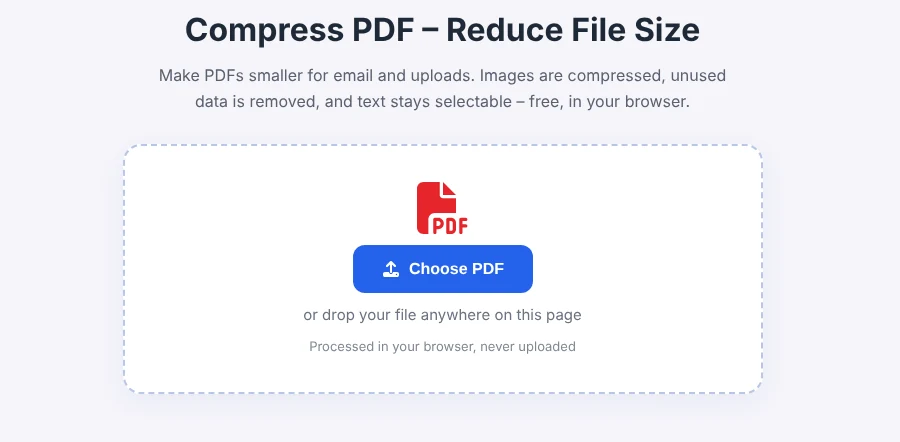
- Compress the file – You can compress the PDF with DonePDF; it runs in your browser, so the file stays on your device.
- Lower image resolution – In Adobe Acrobat Pro, the Reduce File Size and PDF Optimizer features let you downsample images, for example to 150 DPI for on-screen use.
- Remove what you don't need – Hidden layers, old annotations, metadata and unused embedded fonts all add size.
- Split the document – If compression isn't enough, split it into smaller parts.
Tip: Keep an uncompressed master copy. Use the compressed version for sharing.
3. Unable to Edit a PDF
PDF was designed as a fixed-layout format for viewing and printing, not for editing, so changing the content takes extra steps.
Why Editing Is Hard
A PDF stores text as positioned characters on a page rather than as flowing paragraphs, so there is no natural "document structure" to edit. Scanned PDFs are just images of pages and contain no text at all until OCR is applied.
Options
- Make small changes directly – For adding text, notes or simple corrections, you can edit the PDF in your browser.
- Convert to an editable format – For larger rewrites, convert the PDF to Word, edit it, then save it back as PDF.
- Use a desktop PDF editor – Adobe Acrobat Pro, PDFelement and Nitro PDF can edit text and images in place.
- Run OCR on scanned PDFs – OCR turns page images into searchable, selectable text (see problem 5).
- Open it in Google Docs – Upload the PDF to Google Drive and open it with Google Docs. It converts the file to editable text, but formatting often shifts.
4. Formatting Is Broken – Text, Images or Layout
After converting or editing a PDF you may see missing fonts, overlapping text, moved images or blank pages. This is usually caused by fonts that were not embedded or by the limits of the conversion software.
How to Prevent and Fix It
- Embed fonts – When exporting a PDF from Word or InDesign, make sure fonts are embedded in the export settings.
- Check the result – Preview the PDF in more than one reader and on more than one device before sending it.
- Flatten the PDF – Flattening merges form fields, comments and layers into the page content, which avoids differences between viewers.
- Re-create the PDF – If you have the source file, export it again with high-quality settings instead of trying to repair the PDF.
- Expect some shifts after conversion – Converting PDF to Word rebuilds the layout, so complex pages (columns, text boxes) may need manual cleanup.
5. Scanned PDF Is Not Searchable
A scanned PDF is a set of page images. Without OCR you cannot search for words, select text or copy it.
How to Make It Searchable
- Run OCR – With DonePDF you can run OCR on the PDF (up to 10 pages and 30 MB per file) to get a searchable PDF. OCR runs on our server, and the file is deleted after processing, after one hour at the latest. Desktop options include Adobe Acrobat Pro and ABBYY FineReader.
- Save the text – OCR output can also be saved as Word or plain text for editing.
- Scan carefully – 300 DPI is a common recommendation for good recognition; straight, clean, high-contrast pages give better results.
- Proofread – OCR is never perfect, especially with poor scans, handwriting or unusual fonts, so check names and numbers.
6. PDF Won't Upload or Send
An upload form, email or sharing service rejects your PDF. Common reasons are file size, interactive features (forms, scripts) or security filters.
What to Try
- Compress it first – Bring the file under the service's limit (25 MB for personal Gmail, 20 MB for Outlook.com; upload forms often allow much less).
- Split it – If compression isn't enough, split the PDF into several files, for example by chapter.
- Remove interactive elements – Flatten forms and remove JavaScript or embedded media if the receiving system blocks them.
- Simplify the file name – Avoid special characters; use letters, numbers, hyphens or underscores.
- Share a link – Upload to Google Drive, OneDrive or Dropbox and send a link instead of the file.
7. Combining Multiple PDFs
Scans, reports and invoices spread across many files are hard to manage. Merging them into one document makes printing, sharing and filing easier.
How to Merge Well
- Merge in the right order – You can merge the PDFs in your browser and set the file order before combining.
- Arrange pages first – Remove or reorder pages in the source files before merging, so the final document needs less cleanup.
- Bookmarks – If you need to keep the original bookmarks, check that your tool supports it; Adobe Acrobat's Combine Files feature is one option.
- Compress afterwards – A merged file can be large; compress it if you need to email it.
8. PDF Is Password-Protected and You Forgot the Password
PDFs can have two kinds of protection: an open password (needed to view the file at all) and permission restrictions (which limit printing, copying or editing). With modern encryption, a forgotten open password generally cannot be bypassed, so the realistic options are to find the password or get another copy.
What You Can Do
- Check where you saved it – Look in your password manager, browser saved passwords, or the email or message the file came with. Banks and other organisations often use a documented password pattern (for example, part of your date of birth or account number) that is explained in the accompanying email.
- Ask the sender or author – If someone else created the file, ask them for the password or an unprotected copy.
- Go back to the source file – If you created the PDF, export it again from the original document.
- Remove the password once you know it – If you have the password and want a copy without it, you can unlock the PDF. The tool requires the correct password, removes the open password and permission restrictions together, and runs in your browser. It does not guess or crack unknown passwords.
Only remove protection from files you own or are authorised to change.
9. PDF Prints Blank or Garbled
The PDF looks fine on screen, but printed pages come out blank, with missing images or with strange symbols.
What to Try
- Print as image – In Acrobat's print dialog, the Advanced settings include a Print As Image option, which sends each page to the printer as a picture.
- Update the printer driver – Outdated drivers are a frequent cause of print errors.
- Check layers – Some PDFs contain optional layers that are set not to print. Check the layer settings or flatten the PDF.
- Reduce complexity – Very large images and heavy transparency can overwhelm some printers; downsample images or flatten transparency.
10. PDF Is Slow to Open or Scroll
Large PDFs with many images, annotations or form fields can lag when you scroll or zoom.
How to Improve Performance
- Use single-page view – Turning off continuous scrolling means fewer pages are rendered at once.
- Close the thumbnails panel – Generating page thumbnails takes extra work.
- Remove old annotations – Comments and markups add complexity.
- Make the file smaller – Compress the PDF, or use Acrobat Pro's Reduce File Size feature.
- Split very long documents – A 500-page PDF is easier to handle as several smaller files.
Tips to Avoid Future PDF Problems
- Keep software updated – Update your PDF reader and editor regularly.
- Keep the source files – Store the original Word or InDesign files, so you can re-create a PDF instead of repairing it.
- Prepare files before sharing – Compress large files, remove metadata you don't want to share and open the result once to check it.
- Be careful with unknown online tools – Check where your file is processed and how long it is kept.
- Use PDF/A for archiving – PDF/A (ISO 19005) is designed for long-term preservation, so it is a good choice for documents you need to keep for years.
Summary
Most PDF problems have a straightforward fix once you know the cause: re-download or repair a file that won't open, compress or split one that is too large, convert or OCR a file you need to edit, and get the password from its source when a file is locked. Find the section above that matches your problem and work through the steps in order.
Frequently Asked Questions
How can I unlock a password-protected PDF if I forgot the password?
If the PDF needs a password to open and you no longer have it, check your password manager and the email the file came with, or ask the sender for the password or an unprotected copy. If you created the file, export it again from the original document. Tools that remove protection, including DonePDF's Unlock PDF, need the correct password; they are for removing a password you know, not for recovering one you have lost.
What is the difference between an open password and permission restrictions?
An open password is required to view the PDF at all. Permission restrictions let anyone open the file but limit actions such as printing, copying text or editing. Both can be set on the same file.
How do I fix a PDF that shows garbled text?
Garbled text usually means fonts were not embedded or the font mapping is damaged. Try a different reader first, since some substitute missing fonts better. If you have the source file, export the PDF again with fonts embedded. Flattening the PDF can also fix some display problems.
Can I convert a PDF to Word without losing the layout?
Simple documents with normal paragraphs, headings and tables usually convert well. Complex layouts such as magazines, multi-column pages or many text boxes often need manual cleanup after conversion. For scanned PDFs, OCR has to be applied first, otherwise there is no text to convert.