If you have ever scanned a page and then copied text out of it, you have used OCR – Optical Character Recognition. OCR converts images of text (scanned pages, photos of documents, screenshots) into machine-readable text that you can search, copy and edit. Without it, a scanned PDF is just a picture of a page.
This article walks through what happens between scanning a page and getting usable text: image acquisition, preprocessing, text detection, character recognition and post-processing. It also covers how older pattern-matching OCR differs from neural-network OCR, and why results vary so much from one document to the next.
What Is OCR? A Simple Definition
OCR is a technology that uses algorithms to identify printed or handwritten characters in digital images and convert them into text that computers can process. The "optical" part refers to working from an image; "character recognition" refers to identifying letters, numbers and symbols by their shapes.
Typical uses of OCR:
- Turning scanned documents into searchable PDFs
- Extracting text from images such as screenshots or photos of signs
- Automating data entry from invoices, forms and receipts
- Digitizing books and archives
- Letting screen readers read text that exists only as an image
The Five Stages of OCR – How It Works Step by Step
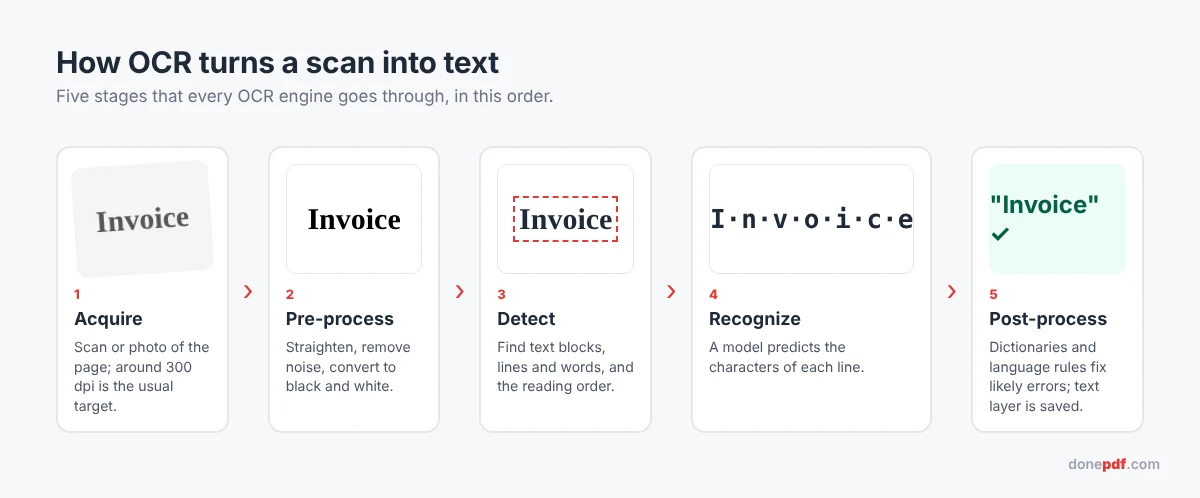
OCR software follows a pipeline in which each stage depends on the one before it.
Stage 1: Image Acquisition (Input)
The process begins with a digital image of text. It can come from:
- A flatbed or sheet-fed scanner
- A smartphone camera and a scanning app
- An existing PDF or image file (JPEG, PNG, TIFF)
- A screenshot
Resolution matters. The Tesseract documentation states that it "works best on images which have a DPI of at least 300 dpi", and 300 dpi is the usual recommendation for scanning text. If your pages are photos, you can combine the images into a PDF first and run OCR on that.
Stage 2: Preprocessing (Cleaning the Image)
Raw scans often have defects that confuse recognition. Preprocessing fixes these before any character is read. Common steps:
- Binarization: Convert the image to black and white (thresholding). Pixels darker than a threshold become text, lighter ones become background. A single global threshold can struggle when the page background is unevenly dark.
- Deskewing: Rotate tilted pages so text lines are horizontal. Tesseract's documentation notes that line segmentation quality "reduces significantly if a page is too skewed".
- Noise removal (despeckle): Remove isolated dots caused by dust, scanner artifacts or compression.
- Contrast enhancement: Increase the difference between text and background.
- Line and border removal: Remove underlines, table rules or dark scanner edges that can be misread as characters. Cropping to the text area with a small margin helps.
A clean, straight, high-contrast image gives every later stage a better starting point.
Stage 3: Text Detection (Layout Analysis)
Before recognizing characters, OCR has to find where the text is. The software analyzes the page to identify:
- Text regions: paragraphs, headings, captions, and also non-text areas such as images and tables.
- Text lines: individual rows of text within a block.
- Words and characters: spaces between words help split a line into words.
Classic techniques include connected component analysis (grouping touching dark pixels) and projection profiles (counting dark pixels per row or column to find lines and gaps). Newer systems use neural networks trained to detect text regions directly. Multi-column pages, newspapers and tables are the hardest cases, because the engine must also work out the correct reading order.
Stage 4: Character Recognition
This is where the engine actually identifies the text. There are two broad approaches.
Traditional Method: Pattern Matching (Matrix Matching)
Each character image is compared with a library of stored templates, and the closest match wins. This works for clean, uniform fonts but breaks down with unusual fonts, noise or skewed characters. Later engines improved on this with feature extraction – describing a character by its strokes, loops and line intersections instead of comparing whole pixel grids.
Modern Method: Neural Networks
Modern OCR engines use neural networks, such as LSTM (Long Short-Term Memory) networks or Transformer models, trained on large collections of text images. Instead of relying on hand-made templates, the network learns which visual features matter. This makes it better at:
- Varied fonts and sizes
- Noisy or imperfect scans
- Using context, since a whole line is read as a sequence rather than one isolated character at a time
A common design passes the line image through convolutional layers that extract visual features, then through recurrent (LSTM) layers that read those features as a sequence. A CTC (connectionist temporal classification) step turns the network's output into a character string without needing to know in advance exactly where each character starts and ends.
The open-source engine Tesseract is a good example of this shift. It was developed at Hewlett-Packard between 1985 and 1994, released as open source by HP and the University of Nevada, Las Vegas in 2005, and developed by Google from 2006. Version 4 added an LSTM-based recognition engine alongside the older one.
Stage 5: Post-Processing (Error Correction)
Every OCR engine makes mistakes. Post-processing reduces them using:
- Dictionary lookup: If a recognized word is not in the dictionary, the engine considers similar words (for example "recogntion" becomes "recognition").
- Language models: The most probable word is chosen based on surrounding words, so "an apple" is preferred over "am apple".
- Edit distance: Measures such as Levenshtein distance find the closest valid word to a misread one.
- Confidence scores: The engine rates how sure it is about each word or character. Low-confidence areas can be flagged for manual review.
The recognized text is then exported as plain text, a Word document, a spreadsheet for tables, or a searchable PDF. In a searchable PDF, an invisible text layer is placed over the original page image, so the page looks the same but can be searched and copied.
Types of OCR Technologies
| Type | Input | Typical results | Use cases |
|---|---|---|---|
| Basic OCR (pattern matching) | Clean printed text in standard fonts | Good on clean scans, weak on noise and unusual fonts | Archiving printed documents |
| Intelligent Character Recognition (ICR) | Handwritten text, usually block letters | Lower than printed text; depends on neatness | Forms with handwritten fill-in fields |
| Optical Mark Recognition (OMR) | Checkboxes, bubbles, filled circles | Reliable for clear marks | Surveys, exam answer sheets, ballots |
| Neural OCR (LSTM/Transformer) | Printed text of varying quality, many fonts and languages | Generally more robust on difficult scans | Scanning apps, historical documents, mixed languages |
Factors That Affect OCR Accuracy
Accuracy is not a fixed property of an engine – it depends heavily on the input:
- Resolution: Low-resolution scans lose the fine detail that separates similar characters. Aim for around 300 dpi for normal text; very small print can benefit from more.
- Image noise: Speckles, grain and dust can be read as punctuation or extra characters.
- Skew: Tilted lines make it harder to find text lines and baselines.
- Contrast: Faded text, colored paper or uneven backgrounds make binarization less reliable.
- Font: Common text fonts are read more reliably than decorative or very condensed ones.
- Handwriting: Neat block letters are far easier than cursive.
- Language setting: Telling the engine the document's language lets it use the right character set and dictionary.
- Layout complexity: Single-column text is easiest; multi-column pages, tables and text over images need better layout analysis.
Real-World Applications of OCR
- Document digitization: Turning paper records into searchable PDFs in offices, libraries and archives.
- Automated data entry: Pulling invoice numbers, dates and amounts from invoices and receipts.
- License plate recognition: Toll collection and parking enforcement use OCR tuned for plates.
- Banking: Reading checks and deposit slips.
- Healthcare: Digitizing paper forms and reports into electronic records.
- Accessibility: Screen readers can use OCR to read text that only exists as an image.
- Translation: Camera translation apps recognize text in a photo and overlay the translation.
How to Improve OCR Accuracy (Practical Tips)
- Scan at about 300 dpi. Grayscale is usually enough for text-only pages.
- Use even lighting. Avoid shadows and glare when photographing pages.
- Flatten the page. Creases, folds and curled edges distort characters.
- Clean the scanner glass to avoid dust specks.
- Straighten and crop before running OCR, and remove dark scanner borders.
- Select the correct language in the OCR settings.
- Check the output. Proofread names, numbers and anything you will rely on, especially on poor scans.
If a scanned file has other issues, such as being too large or not opening, see common PDF problems and how to fix them.
OCR Engines in Practice
Results depend more on scan quality than on the brand of engine. Commercial desktop products, cloud OCR services and open-source engines such as Tesseract all handle clean, straight printed pages well; differences show up mainly on poor scans, complex layouts and handwriting. If one engine gives poor results on a difficult document, trying another can help.
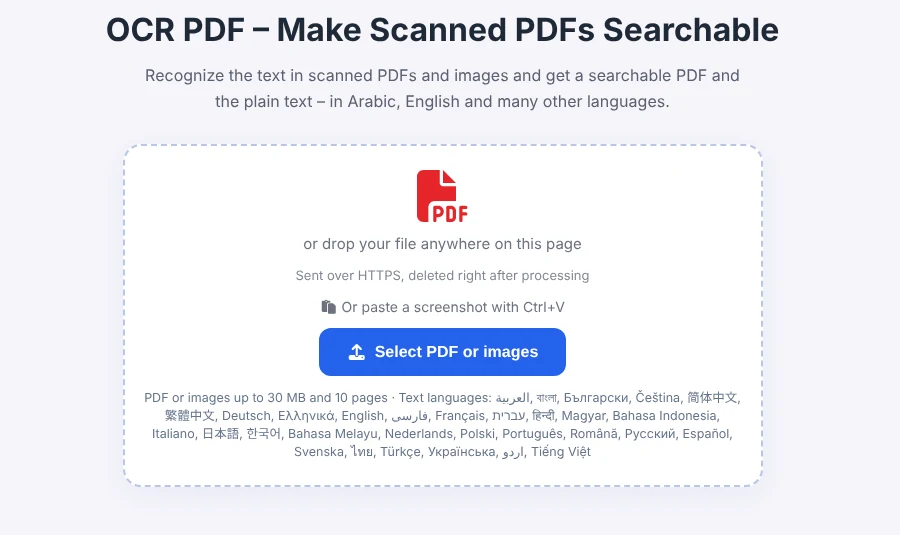
DonePDF's OCR PDF tool uses Tesseract through OCRmyPDF to add a searchable text layer to scanned PDFs. It runs on our server, and uploaded files are deleted after processing, never later than one hour. It works best on clean, straight, sharp printed pages; handwriting is generally not recognized well, and specialized ICR software does better with neat block letters. For a single image, extract the text from the image instead.
Conclusion
OCR combines image processing, layout analysis and pattern recognition. Five stages work together: image acquisition, preprocessing, text detection, character recognition (by pattern matching or neural networks) and post-processing. Knowing what each stage needs explains the practical advice: scan at a sensible resolution, keep pages straight and clean, set the right language, and check the output on anything important.
Frequently Asked Questions
What is the difference between traditional OCR and neural-network OCR?
Traditional OCR compares each character image against stored templates or hand-designed features. It works on clean, standard fonts but struggles with unusual fonts, noise and skew. Neural-network OCR (for example LSTM-based engines such as Tesseract 4 and later) is trained on large collections of text images and reads whole lines as sequences, which makes it more robust to varied fonts and imperfect scans. Most current engines use neural networks.
Why does OCR fail on some of my scanned documents?
Usually because of the input. Common causes are low resolution, tilted pages, specks and dust, faded or low-contrast text, decorative fonts or handwriting, complex multi-column layouts, and shadows or glare from photographing a page. Rescanning at around 300 dpi, straightening and cropping the page, and choosing the correct language usually helps more than changing tools.
Can OCR recognize handwriting?
Partly. Handwriting recognition is often called ICR (Intelligent Character Recognition). Neat block letters in dark ink are recognized far more reliably than cursive or messy writing, and results are generally lower than for printed text, so always proofread. General-purpose OCR engines built for printed text do not handle handwriting well.
What resolution (DPI) is best for OCR?
About 300 dpi is the common recommendation for normal printed text; the Tesseract documentation says it works best on images of at least 300 dpi. Lower resolutions lose detail in small characters and punctuation. Higher resolutions mainly help with very small print and make files larger. If you only have a low-resolution scan, rescanning is the most reliable fix.
What is a searchable PDF and how does OCR create it?
A searchable PDF keeps the original scanned image of each page and adds an invisible text layer produced by OCR. The engine recognizes the text and records where each word sits on the page, and that text is placed at the same positions over the image. The page looks unchanged, but you can search it with Ctrl+F and copy text from it. For how PDFs store pages and text, see how PDF files work.