PDF (Portable Document Format) and Microsoft Word (DOCX) are two of the most common document formats, but they are built for different jobs. PDF is a fixed-layout format for sharing, printing and archiving a finished document. Word is an editable, reflowing format for writing and revising. Picking the wrong one usually means a layout that shifts on someone else's screen, or a "final" file that is awkward to change. This article compares the two on editing, layout, security, collaboration, file size, printing and accessibility, explains the difference between Word's older .doc and current .docx formats, and covers converting between PDF and Word.
Quick Overview: PDF vs Word at a Glance
| Feature | Word (DOCX) | |
|---|---|---|
| Primary purpose | Sharing, printing and archiving finished documents | Creating, editing and collaborating on drafts |
| Easy to edit? | Limited; needs a PDF editor, and larger changes are awkward | Yes, natively |
| Layout fixed across devices? | Yes, page layout is fixed (most reliable when fonts are embedded) | No; can shift with missing fonts, printer settings or app version |
| Password to open | Yes; AES-128 or AES-256 in current tools | Yes; AES (128-bit in Word 2007–2013, 256-bit by default from Office 2016) |
| Digital signatures | Yes, certificate-based; widely used for contracts | Yes, certificate-based; less common for exchanging documents externally |
| Track changes & co-authoring | No; comments and annotations only | Yes; real-time co-authoring via OneDrive/SharePoint |
| File size | Depends on content (images, embedded fonts) | Depends on content; DOCX is ZIP-compressed |
| Open standard | ISO 32000 | ECMA-376 / ISO/IEC 29500 |
What is a PDF?
PDF was created by Adobe and released with Acrobat in 1993; it became an ISO standard, ISO 32000-1, in 2008. It is a fixed-layout format: text, images, margins and page breaks are positioned on the page, and fonts are normally embedded in the file, so a PDF looks the same in different viewers on Windows, Mac, Linux or mobile. PDF supports passwords, digital signatures and redaction, which makes it a common choice for documents that should not change: contracts, invoices, resumes and published reports.
What is Microsoft Word (DOCX)?
DOCX has been the default format for new Word documents since Word 2007. It is an editable, reflowing format: text wraps and repaginates based on the fonts, page settings and printer available on the computer that opens it. Word is built for writing and revising, with track changes, comments and real-time co-authoring when the file is stored in OneDrive or SharePoint. DOCX suits drafts, internal documents and anything that will go through several rounds of revision.
DOC vs DOCX: What Changed
Word has used two main file formats:
- .doc is the older proprietary binary format, used by Word 97–2003 (shown as "Word 97-2003 Document" in the Save As list). Current Word versions still open .doc files, in Compatibility Mode.
- .docx is the XML-based Office Open XML format that replaced it. A .docx file is a ZIP package of XML files plus any images. It was standardized as ECMA-376 in 2006 and as ISO/IEC 29500 in 2008, and has been Word's default since Word 2007.
In practice, prefer .docx: it is an open, documented standard, is supported by most other word processors, and avoids the weak password protection of the old format (Word 97–2003 used 40-bit RC4 encryption, which is considered insecure). Documents that contain macros are saved as .docm instead, because .docx cannot store macros. Whichever Word format you use, the comparison with PDF below is the same.
Key Differences in Depth
1. Editability – Word is for Drafts, PDF is for Finals
Word (DOCX) is designed for editing. You can change text, images or tables directly, and Track Changes lets reviewers suggest edits without overwriting the original. PDF is designed for the finished result. You can still edit a PDF with an online editor or Adobe Acrobat, but changing text that reflows across lines or pages is much harder than in Word. For documents that will go through many revisions, work in DOCX, then convert to PDF once the content is final.
2. Layout Preservation – PDF Stays Put, Word Can Shift
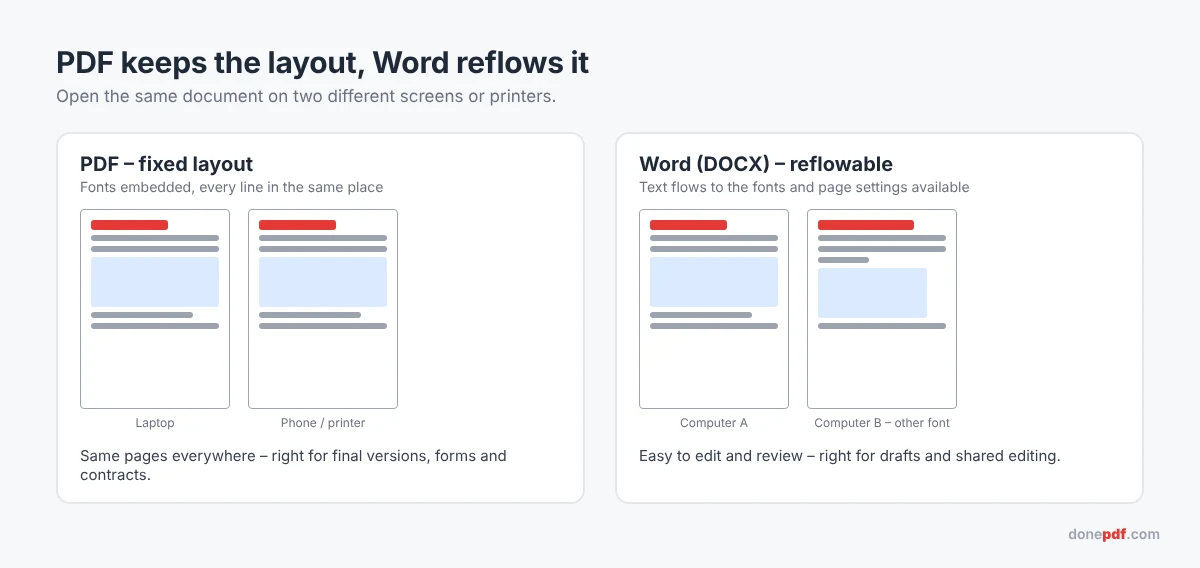
This is the most practical difference. A PDF fixes the page layout: fonts (when embedded), margins, line breaks and page numbers stay the same when the file is opened elsewhere. A Word document is laid out again each time it is opened, so missing fonts, different printer settings or a different Word version (including Word for Windows vs Mac) can change line breaks and page count. A one-page resume can spill onto a second page, or a contract's pagination can differ from the copy the other party sees. When visual precision matters (resumes, contracts, legal filings, brochures), send a PDF.
3. Security – Both Can Be Encrypted; the Details Matter
The common claim that Word passwords are weak is only true of the old .doc format and of Word's editing restrictions. A current DOCX protected with File > Info > Protect Document > Encrypt with Password is encrypted with AES (256-bit by default since Office 2016), so a strong password is the main factor in how secure it is. Office password protection is weak only for legacy files and for "Restrict Editing", which does not encrypt the file and can be bypassed.
PDF offers a broader set of document security features:
- Open password with AES-128 or AES-256 encryption (AES-256 is part of the PDF 2.0 standard).
- Permissions password to restrict printing, copying or editing. These restrictions are enforced by the viewer application, so treat them as a deterrent, not real protection.
- Certificate-based digital signatures that show whether the file was changed after signing.
- Redaction, which removes the underlying text rather than just covering it.
Word also supports certificate-based digital signatures, but PDF is the more common format for signed documents exchanged between organizations. Whether an electronic or digital signature is legally binding depends on the jurisdiction and the type of document, not just the file format. To add an open password to a finished PDF, you can password-protect the PDF; on DonePDF this runs in your browser, so the file is not uploaded.
4. Collaboration – Word is Better for Team Editing
Word stored in OneDrive or SharePoint supports real-time co-authoring: several people can edit the same document at once, and Track Changes records each edit. That suits proposals, reports and contract negotiations. PDF supports annotations (comments, highlights, sticky notes), which work well for review and approval, but it has no equivalent of Track Changes. Collaborate in DOCX, then convert to PDF when the document is final.
5. File Size – It Depends on the Content
Neither format is always smaller. A DOCX file is ZIP-compressed XML, so text-only documents are usually small in either format. Size is mostly driven by images and embedded fonts: a PDF can be larger than its DOCX source if it embeds several fonts, or smaller if images are downsampled during export. PDF supports several compression methods (for example Flate, JPEG, JPEG 2000 and JBIG2). A DOCX can also carry extra data such as unaccepted tracked changes, comments and document properties, so accept or remove them before sharing. If a PDF is too large to email, you can compress the file.
6. Printing – PDF is More Predictable
PDF is the standard hand-off format for commercial printing, and the PDF/X family (ISO 15930) adds requirements for reliable print production, such as color handling and bleed. For home or office printing, a PDF gives predictable page breaks. Word can print differently from one computer to the next if fonts are substituted or printer settings change pagination. For anything printed professionally, provide a PDF.
7. Accessibility – Both Can Be Accessible
Accessibility depends on how the document is made, not just the format. In Word, use built-in heading styles, alternative text for images and simple table structures; Word's Accessibility Checker flags common problems. When you save as PDF from Word, keep "Document structure tags for accessibility" turned on so the PDF is tagged and screen readers can follow headings, reading order and alt text. PDF/UA (ISO 14289) is the standard for accessible PDFs. A scanned PDF is just images of pages, so screen readers cannot read it until the text is recognized with OCR.
When to Use PDF
- Final versions of contracts, NDAs and agreements, especially ones that will be signed.
- Resumes and cover letters, unless the employer or application system asks for Word.
- Court and government filings when the e-filing system requires PDF (check the specific rules).
- Invoices and financial statements.
- Print-ready materials such as brochures, flyers and books.
- Long-term archiving, using PDF/A (ISO 19005).
- Sharing with external clients or regulators who should see exactly what you sent.
- Fixed-layout publications such as reports, manuals and some e-books.
When to Use Word (DOCX)
- Drafting and writing new content.
- Editing with several reviewers using Track Changes, comments or co-authoring.
- Internal memos and working documents where exact layout is not critical.
- Documents that will go through many revisions.
- Mail merge (for example, personalized letters).
- Documents with automatic tables of contents, indexes or cross-references that are still changing.
- When a recipient, publisher or application process asks for an editable Word file.
Detailed Comparison Table
| Criterion | Word (DOCX) | |
|---|---|---|
| Edit text easily | Limited; needs a PDF editor | Yes |
| Layout fixed across devices | Yes | No; can reflow |
| Password to open | AES-128 or AES-256 | AES (256-bit by default from Office 2016); legacy .doc uses weak 40-bit RC4 |
| Editing/permission restrictions | Enforced by the viewer; can be bypassed | "Restrict Editing" is not encryption; can be bypassed |
| Digital signatures | Yes (certificate-based) | Yes (certificate-based) |
| Track changes | No (comments and annotations only) | Yes |
| Real-time co-authoring | No | Yes (OneDrive/SharePoint) |
| Font embedding | Usual; required for PDF/A | Optional setting; otherwise relies on fonts installed on the viewer's computer |
| File size | Depends on images and embedded fonts | Depends on images; ZIP-compressed |
| Print reliability | Predictable pagination | Can change with fonts or printer settings |
| Accessibility | Good when tagged (PDF/UA, ISO 14289) | Good with heading styles and alt text; Accessibility Checker built in |
| Standard | ISO 32000 | ECMA-376 / ISO/IEC 29500 |
Real-World Scenarios: Which Format Wins?
Scenario 1: Sending a resume to a potential employer
Usually PDF. Recruiters open resumes on different devices and software, and a PDF keeps your headings, margins and fonts where you put them. A Word file can reflow and shift dates or columns. The exception is when the job posting or application system asks for a Word file; then send what is requested.
Scenario 2: Writing a 50-page report with three colleagues
Word (DOCX). You need Track Changes, comments and co-authoring, which PDF does not offer. Store the file in OneDrive or SharePoint, and convert to PDF only when the report is final.
Scenario 3: Sending a contract to a client for signature
PDF. A PDF fixes the pagination both parties see, and a certificate-based digital signature makes later changes detectable. Convert the final Word draft to PDF, then sign the PDF or send it through the signing service you use.
Scenario 4: Printing 200 copies of a brochure
PDF, ideally PDF/X. Print shops usually want a print-ready PDF with the right color settings, bleed and image resolution. Word's Save as PDF has no PDF/X option, so for professional print jobs export from layout software that supports PDF/X, or ask the printer which settings they need.
Scenario 5: Archiving documents for ten years or more
PDF/A. PDF/A (ISO 19005) requires fonts to be embedded and forbids external dependencies and encryption, so the file can be rendered the same way in the future without the original software. Word can save directly as PDF/A (see below), or you can convert an existing PDF to PDF/A. Keep the DOCX source as well if you may need to edit it later.
Scenario 6: Sending a draft for quick feedback
Word if the reviewer will edit text with Track Changes. PDF if they only need to comment or highlight, since annotations do not alter the text.
How to Convert Between PDF and Word
Convert Word to PDF (Finalize a Document)
- In Microsoft Word (Windows): File > Save As (or Export) and choose PDF. Under Options you can create bookmarks from headings, keep accessibility tags, save as PDF/A ("ISO 19005-1 compliant") or encrypt the PDF with a password. "Save As PDF" generally keeps links and bookmarks better than printing to a PDF printer such as Microsoft Print to PDF.
- Online: convert Word to PDF without installing anything. This conversion runs on DonePDF's server; files are deleted right after processing and never kept longer than one hour.
- Google Docs: File > Download > PDF document (.pdf).
Convert PDF to Word (Edit a PDF)
- Online: convert the PDF to Word. This works best for PDFs that contain real text (for example, ones exported from Word). It also runs on the server, with the same deletion policy.
- Microsoft Word: since Word 2013, desktop Word can open a PDF directly (File > Open) and convert it to an editable document. Microsoft notes the result may not match the original exactly; line and page breaks can move, and it works best with mostly-text PDFs.
- Adobe Acrobat Pro: File > Export a PDF > Microsoft Word.
Complex layouts (multiple columns, text wrapped around images, nested tables) rarely convert without some cleanup, whichever tool you use. A scanned PDF contains only images of pages, so run OCR on the PDF first to get editable text.
Best Practices for Each Format
For Word (DOCX):
- Use built-in heading styles (Heading 1, Heading 2); they improve accessibility and become PDF bookmarks on export.
- Use widely available fonts, or turn on font embedding (File > Options > Save) if recipients will edit the DOCX.
- Before exporting, check page breaks with formatting marks shown (Ctrl+Shift+8 on Windows).
- Accept or reject tracked changes and delete comments before sending a file outside your team.
- Keep the DOCX source after exporting the final PDF.
For PDF:
- Create PDFs with "Save As PDF" or "Export" rather than a print-to-PDF driver to keep links and bookmarks.
- Use PDF/A for long-term archives.
- Use an open password, not just permission restrictions, for confidential files.
- Compress large PDFs before emailing them.
Common Mistakes When Choosing PDF vs Word
- Sending a Word document as a final contract. The other party may see different pagination, and the text is easy to change. Send a PDF for final versions.
- Round-tripping through PDF for small edits. Converting a PDF back to Word, editing and re-exporting can introduce layout changes. Keep the original DOCX and edit that instead.
- Relying on "Restrict Editing" or PDF permissions for confidentiality. Neither encrypts the content. Use an open password (Encrypt with Password in Word, or a PDF open password).
- Sending a DOCX to a professional printer. Provide a print-ready PDF instead.
- Collaborating on a PDF by emailing versions back and forth. Use Word with Track Changes or a shared online document while the content is still changing.
Conclusion – PDF for Finals, Word for Drafts
PDF and Word complement each other. Use Word for drafting, writing and collaborating: Track Changes, co-authoring and direct editing make it the better choice while a document is still changing. Prefer .docx over the legacy .doc format. Use PDF for finalizing, sharing, printing and archiving: its fixed layout, digital signatures, encryption and archival variant PDF/A make it the safer hand-off format. A practical workflow is to draft and review in Word, then export to PDF when the document is ready for signature, distribution or print.
Frequently Asked Questions
Can I edit a PDF in Microsoft Word?
Yes. Desktop Word (2013 and later) can open a PDF with File > Open and convert it into an editable document. Microsoft notes the result may not look exactly like the original: line and page breaks can move, and conversion works best with PDFs that are mostly text. Complex layouts such as multiple columns or text wrapped around images often need cleanup. A scanned PDF needs OCR first to produce editable text.
How do I convert a Word document to PDF without losing formatting?
Use Word's own export rather than a print-to-PDF driver:
- In Word, choose File > Save As (or Export) and select PDF.
- Under Options, keep document structure tags for accessibility and create bookmarks from headings. Select "ISO 19005-1 compliant (PDF/A)" if you want an archival PDF with embedded fonts.
- Choose Standard rather than Minimum size if the PDF will be printed.
You can also use the online Word to PDF converter.
Which format is more secure, PDF or Word?
Both can be strongly encrypted. A modern DOCX protected with Encrypt with Password uses AES (256-bit by default since Office 2016), and PDF supports AES-128 and AES-256 open passwords. Weak protection comes from the legacy .doc format (40-bit RC4), Word's "Restrict Editing", and PDF permission passwords, none of which reliably protect the content. PDF adds features such as true redaction and widely used signature workflows. For a confidential file, use an open password with a strong passphrase, for example with Protect PDF.
Why does my Word document look different on another computer?
Word lays out the document again on every computer that opens it. If that computer lacks a font you used, Word substitutes another one, which changes line breaks and page length. Different printer settings, paper size defaults and Word versions (including Windows vs Mac) can also change pagination. A PDF with embedded fonts avoids this because the page layout is fixed when the file is created.
How do I reduce the file size of a PDF converted from Word?
- Before exporting, compress images in Word (select a picture, then Picture Format > Compress Pictures).
- Choose "Minimum size" in Word's Save as PDF options if print quality is not important.
- After exporting, run the file through Compress PDF.
How much smaller the file gets depends mainly on how many images it contains.
Can I convert a password-protected Word document to PDF?
Yes, if you know the password. Open the document in Word and save it as PDF; the PDF does not inherit the Word password, but Word's Save as PDF options include "Encrypt the document with a password" if you want the PDF protected too. An online converter cannot open an encrypted DOCX, so remove the password first (File > Info > Protect Document > Encrypt with Password, then clear the password) or convert in Word itself.